Downloading Data
HyperGas supports three HSI L1 data: EMIT, EnMAP, and PRISMA.
EMIT
GUI
The NASA Earthdata Search website is the official EMIT L1B data source.
You can browse RGB preview, direct download, and order data.
For detailed instructions, refer to the EMIT-Data-Resources guide.
A simple method is to click the Copy button at the final step and paste the links into a single links.txt file:
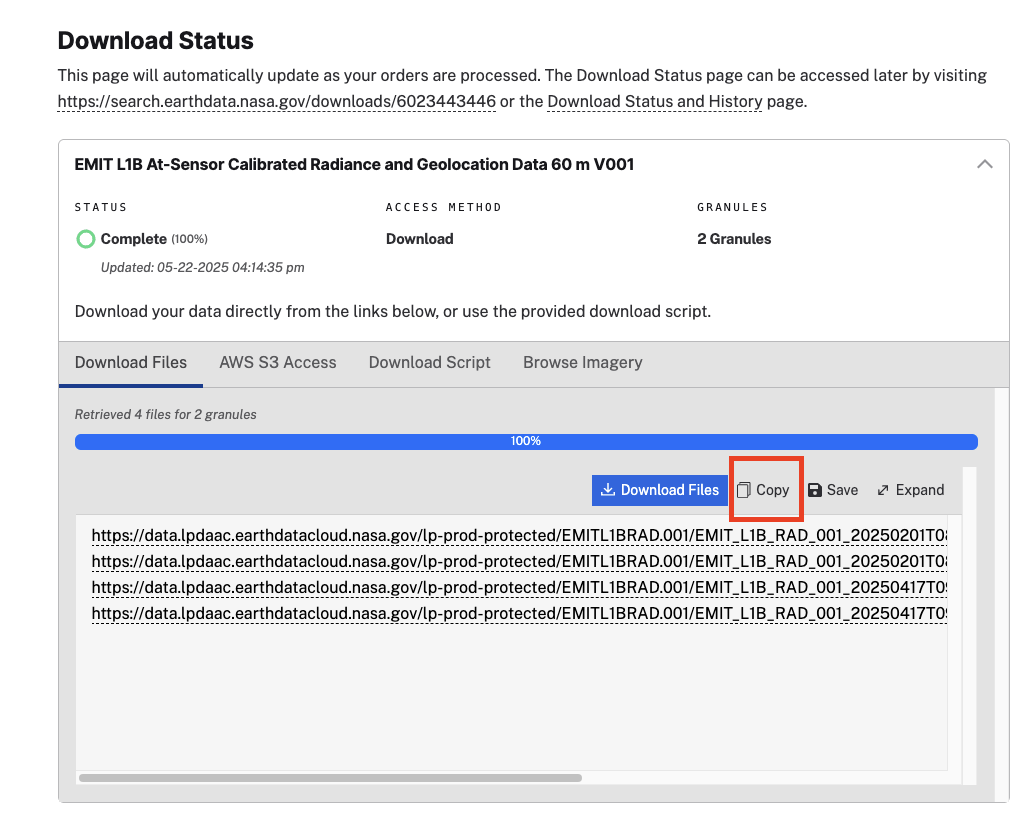
After that you can run wget -i links.txt to download all data into the current directory.
Note
Using wget to download Earthdata files will read your account info from the ~/.netrc file, which is like this:
machine urs.earthdata.nasa.gov
    login <username>
    password <password>
CLI
If you want to search and download data using Python script, earthaccess is the alternative option. This issue discussed the main function.
Here is an example of checking EMIT L1B data (2022~2023) for all locations in one CSV file:
import os
import pandas as pd
import earthaccess

save_dir = './links/'
df = pd.read_csv('locations.csv')

def search_emit(row):
    sdate = '2022-01-01'
    edate = '2023-12-31'
    longitude = row['longitude']
    latitude = row['latitude']
    search_params = {
        "concept_id": "C2408009906-LPCLOUD", # CMR concept ID for EMITL1BRAD.001
        # "day_night_flag": "day",
        # "cloud_cover": (0, 70),
        "temporal": (f"{sdate} 00:00:00", f"{edate} 23:59:59"),
        "point": (longitude, latitude)
    }

    results = earthaccess.search_data(**search_params)

    return [x.data_links() for x in results]

df['link'] = df.apply(search_emit, axis=1)

for index, row in df.iterrows():
    urls = row['link']
    if urls:
        savename = os.path.join(save_dir, row['source_name'].replace(',', '').replace(' ', '_').replace('.', '')+'.txt')
        with open(savename, 'w') as f:
            # export to txt file line by line
            for link in urls:
                f.write("\n".join(link))
                f.write('\n')
EnMAP
EnMAP L1B data is only available on the EOWEB. For guidance, refer to the screencasts on their Data Access page. After submitting your order, you will receive an email containing multiple download links per request.
Here is the quick way to download all tar.gz files in one order:
wget --no-check-certificate --user <username> --password <password> <http_link_dims_op_oc_oc-en_*.tar.gz>
Note
If you are an SRON user, you must connect to the eduroam network; otherwise, the download link will be blocked by WLAN_SRON.
Because HyperGas can read the ZIP file directly, you just need to keep the ZIP file like this:
# unzip data and keep zip files
for f in *.tar.gz; do tar xzf "$f"; done
mv **/**/*.ZIP .
rm -rf dims_op_oc_oc-en_*
It will move ZIP files to the root data dir and remove tar.gz files.
PRISMA
You need to register on the PRISMA website and write a data using proposal. Once your account is approved, the default overall quota is 109 images (both new acquisition and archived data). The limit, however, is a maximum of 5 image per day. You can send an email to Prisma Mission Management (prisma_missionmanagement@asi.it) to request for a larger one.
Once you submit orders successfully, you will get one email per order.
It is better to create a txt file and save all links there line by line.
Then you can download them at once using wget:
wget -i links.txt